Foreign Payments

Last Article Update 05.01.2026

Single payment to foreign country

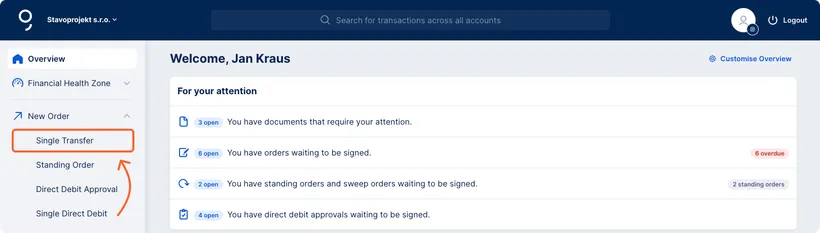
Domestic payment option in the left menu Domestic payment option in the left menu

International payments can be initiated using the same payment form as for domestic payments. The form will automatically adjust to the type of payment based on the details you enter.

Select the "New Order" item in the menu and then click "Single Trasfer". At the top of the form that will open, switch to "To foreign country". This will adjust the form. The fields (and the form's title) will further adapt based on the entered account number (IBAN) or the selected foreign currency.
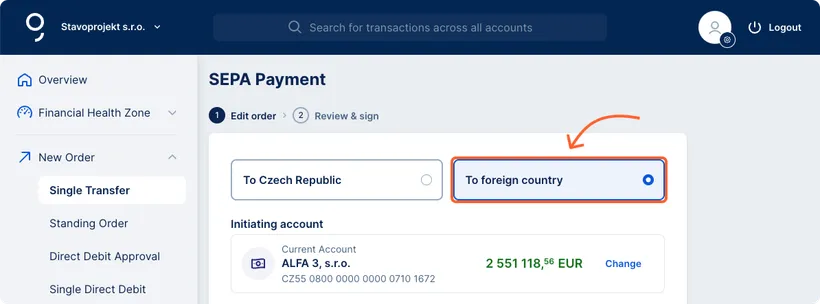
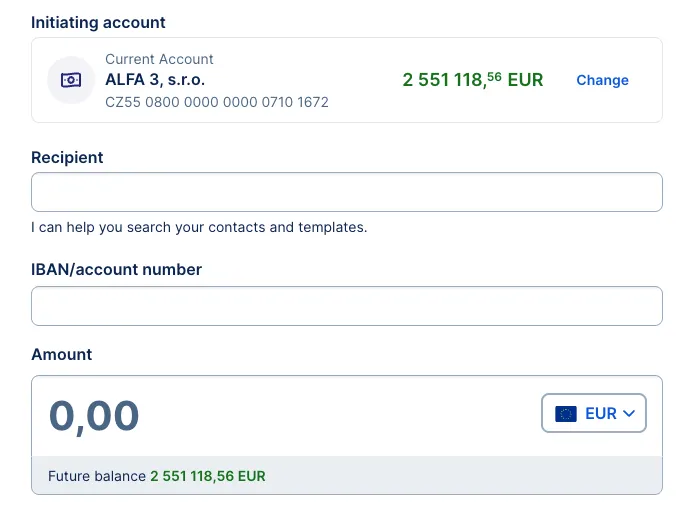
New foreign payment New foreign payment

Types of international payments

  • SEPA payment
    If you are making a payment in euros within the SEPA zone (including the Czech Republic), it is classified as a SEPA payment. The SEPA payment form is the default for international payments.
  • Foreign Payment (non-SEPA)
    If you are making a transfer in another foreign currency (even within the Czech Republic), it is classified as a foreign payment. The payment form will adjust according to the currency entered. Required fields for foreign payments are subject to the recipient country’s regulations. Specific rules for transfers to selected countries can be found here.

How to fill out the form

Foreign payment detail Foreign payment detail

Initiating account – It is the account from which the payment is sent. It is automatically pre-filled either with the account from which you have accessed the order form or with your primary account. You can select a different account by clicking "Change".

Recipient – The name of the client or company in which the account is registered at the recipient's bank. This information is required by the foreign bank to identify the client. If the recipient's name is missing or inaccurate, the payment may fail.

IBAN / Account number – Provide the account number in the international format (IBAN), e.g. DE11 1111 0000 1111 0000 11.

Amount – Enter the payment amount and select the desired currency. Some fields may change based on the selected currency.

Sharing of expenses – This is typically the default type where the sender and the recipient pay their respective bank fees. Alternatively, you can choose a different cost-sharing option.

LEI (Legal Entity Identifier) – It is a unique code that identifies the legal entity engaging in a financial transaction. It increases transparency within capital markets and in banking. The field is optional.

Email confirmation – Check this box if you want a payment confirmation to be sent to a specific email address.

Transfer date – Click in the field to open a calendar and select the desired transaction date. If no date is entered, the order will be processed as soon as possible.

Template – Check this box to create a new payment order template or update an existing one.

Saving and Confirming Orders

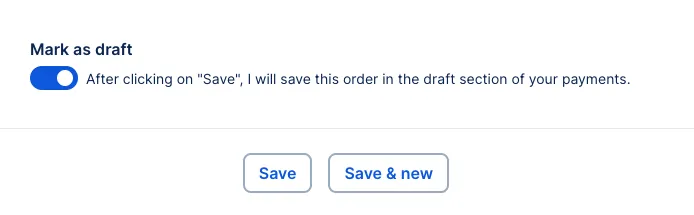
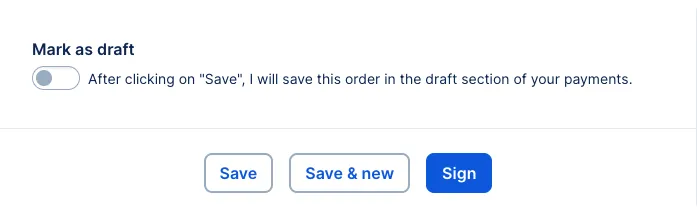
With the "Mark as draft" toggle, you determine how the payment order is saved and when it can be signed.

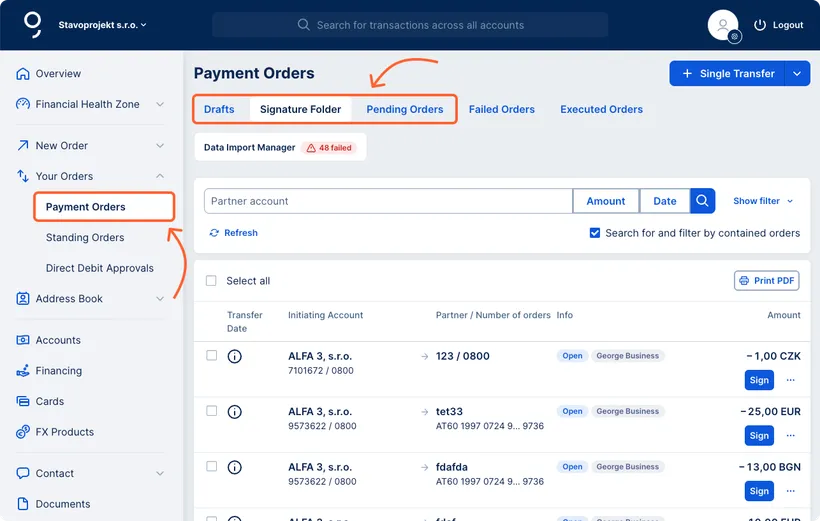
Overview of payments Overview of payments