Create a new template

Last Article Update 15.12.2025

With George Business, you can streamline payments by using predefined templates, helping you avoid errors and save time.

Instead of entering all payment details each time you transfer money, templates make your payment process simpler and more efficient.
How to Create a Payment Template from a New Order

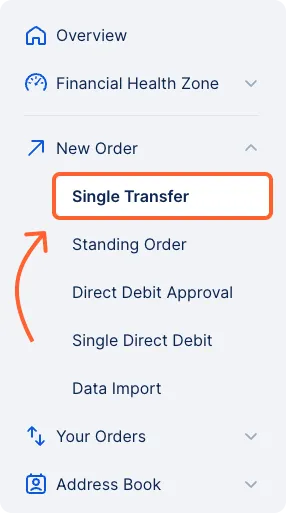
  1. Create New Order.

    New order New order
  2. Enter Payment Details.

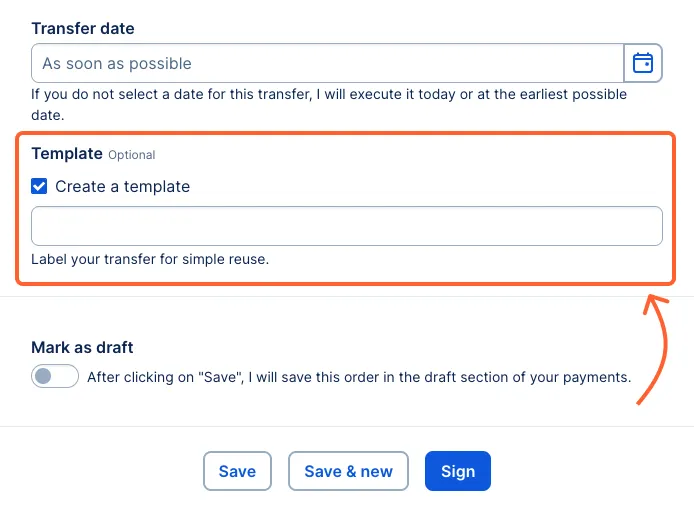
  3. After entering the amount, tick the "Create a Template" box below transfer date field.

    Creating a template Creating a template
  4. Name Your Template:
    Choose a name you can easily recognize later

  5. Click "Save" or "Save & New" if you wat to sign later. Or sign the payment right away to complete the process.

How to Create a Payment Template from Address Book

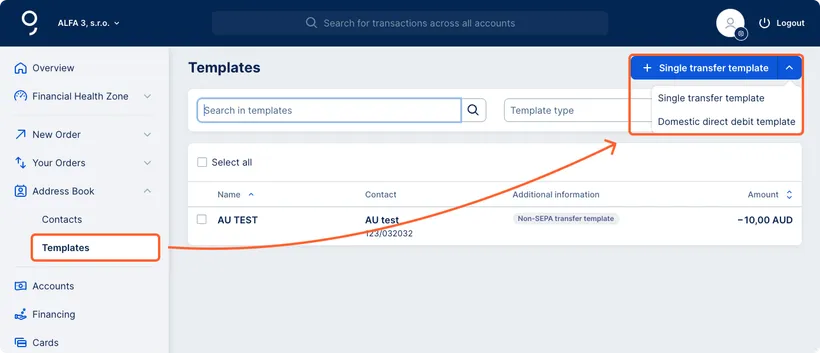
  1. In your overview, go to the main navigation on the left

  2. Click on 'Address Book'.

  3. A drop-down menu will open. Click on 'Templates'.

  4. From the top-right drop-down menu, select the template type you want to create.

    Create a new template Create a new template
  5. In the next step, choose a template name that you will easily remember. Then fill in the payment details.

  6. Click 'Save' to finish.. George Business will save and show your new template.

  7. You can view and edit your template anytime from the templates menu.

Managing Templates

Access and edit your saved templates anytime via the Templates section in the main menu. This helps you keep your templates up to date and relevant.