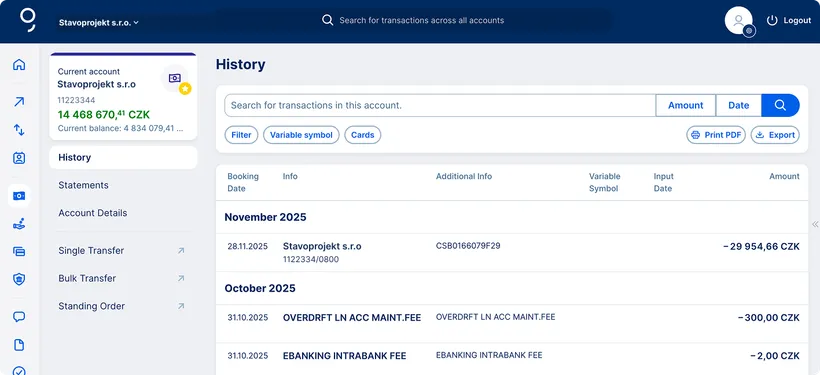
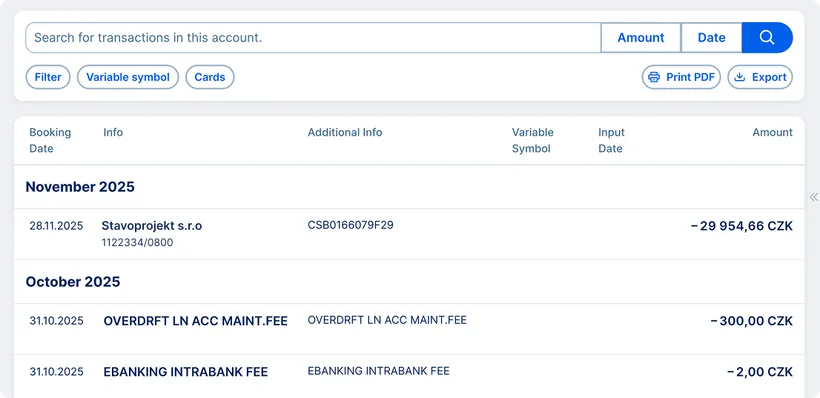
While the general George Busines search in the top header navigation is finding transactions across all your accounts, cards and products, you can also search within the transaction history of each specific account.
So, once you open one of your accounts, you can find any transaction made one it within the last 7 years.
How the search works
The transaction search within one account works the same way as the transaction search across accounts and products. That means you have the following finding tools:
In addition, you have above the transaction history/the search results an expandable filter for incoming and outgoing transactions.
Search Bar
As said before: While the search bar in the George Business top header is finding transactions across accounts, cards and products, the one above the transaction history helps brings you to your product specific transactions within the last 7 years.
Start your search with whatever part of the transactions in question you know. Simply enter a name (or part of it), recipient, variable symbol, message text for the recipient, IBAN or anything else.
Date Filter
If you're looking for a payment made within a certain period, use the date filter. From the calendar that appears, simply select the start and/or end date. George will find and display all completed transactions within that period.
Amount Filter
You want to search for a certain amount, but you don't remember exactly how much it was? Then the amount filter is helpful. Simply enter a minimum and a maximum amount and George will show you all transactions that are in the range you selected.
Your search results
George displays the transactions found based on your search criteria in chronological order, starting with the most recent transaction.
If you want to narrow the search results further, you have several filters available:
by incoming/outgoing transactions: just open the "filter" dropdown
the amount filter as explained above
the date filter as explained above
Apart from the booking date, the amount and the most important info (which in most of the cases is the recipient or sender), George Business displays some additional info on the found transactions and the valuta date.
In order to access the transaction details, just click on the specific search result.
Last but not least, you can print & export your search results from here by clicking on the respective symbols on top of the findings list.
In addition to the searched transactions, you can include information about the opening and closing balance of the given account in the PDF or export in MS Excel format. In the window that opens on the right side of the screen, make sure to keep the “Include starting and ending balance” box checked.