With the George Business mobile application, you always have your business finances under control. You can quickly check your account balances, send payments, or update your contact details. Explore the features the application offers and where to find them.
George Business Mobile App – Key Features
Last Article Update 18.06.2026
Requirements for downloading the app
You can install the George Business app on up to five mobile devices.
The application is free of charge and is available in both Czech and English. To use it successfully, you need a device with the iOS or Android operating system (see more information about supported operating systems). For proper functioning, you need:
- iOS version 16.4 or higher,
- Android version 10.0 or higher,
- an internet connection via Wi-Fi or mobile data.
You can install the application on up to five mobile devices.

Application language
On Android, you can choose the application language directly in its settings. On iOS, the language follows your phone settings.
The application is available in Czech and English.
Secure login and authorization
The application serves not only as mobile banking, but also for secure login to the George Business web application and for authorizing payments or non-financial requests.
You can log in using a PIN or biometrics (fingerprint or Face ID). For security reasons, the application may occasionally prompt you to enter your PIN even if biometric authentication is enabled.
Geolocation is also used to enhance security. This helps the application better evaluate that it is really you who is logging in and approving transactions. You can refuse access to location at any time; however, additional verification may be required for some operations, and their processing may take longer.
Verified calls from Česká spořitelna
If Česká spořitelna calls you, the George Business mobile app will alert you via a push notification. This way you can be sure the caller is genuinely from the bank. The notification will appear on your screen or in your notification centre, provided you have notifications enabled and are online.
If the notification does not arrive or you are unsure, you can contact us directly on 956 777 888.
Overview
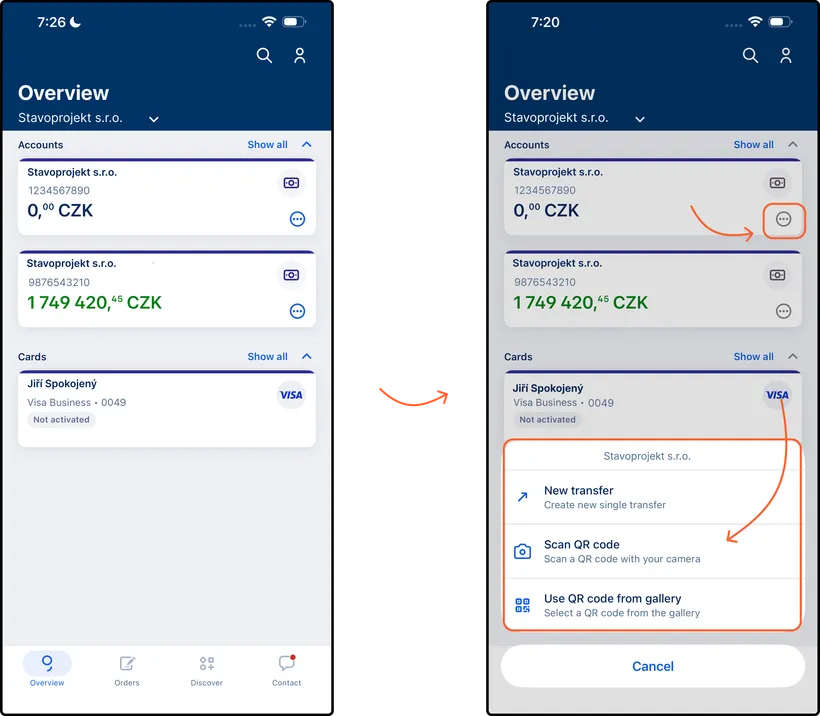
After logging in, the home screen – Overview – is displayed with your products. From here, you can easily access the most important actions.
Accounts
In the overview, you will find all accounts you are authorized to access, along with their current balances.
For each account, there is a menu of functions available by tapping the three dots. You can:
- enter a one-time payment manually,
- enter a payment by scanning a QR code,
- enter a payment by selecting a QR code saved in your phone gallery.
By tapping a specific account, you open its detail view. The account detail contains two tabs:
- Transactions – overview of incoming and outgoing payments and reservations
- Info – basic account details such as account type and name, account owner, account number, IBAN, and BIC/SWIFT
From the Transactions tab in the account detail, you can also create a one-time payment manually using the "+ New Transfer" button in the bottom right corner.
Cards
In the overview, you will also find cards issued in your name or cards you can access as a card administrator.
By tapping a specific card, you open its detail, which includes:
- Transactions – card transactions and payment reservations
- Info – basic information such as card type, cardholder, account owner, and validity
- Functions – the cardholder can block the card or view limits, PIN, full card number, and other details
Payment Orders
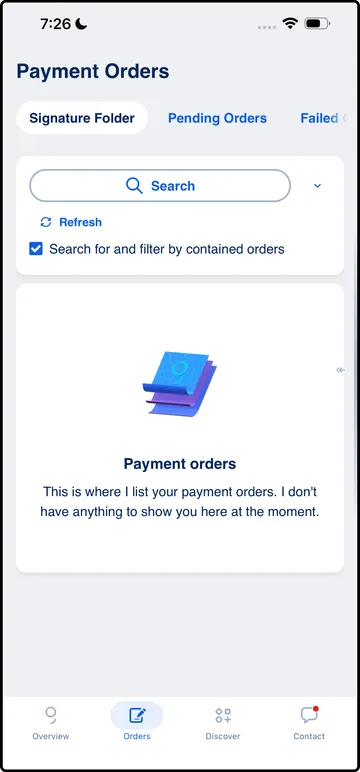
From the bottom navigation bar, you can switch to the Orders section, where you can find all orders. Orders are divided into several tabs based on their status:
- Drafts – visible only to the user who created the order; available for up to 30 days or until sent for signing
- Signature Folder – includes all orders waiting for approval or co-signing; visible to both initiators and approvers; remains pending for 30 days
- Pending Orders – payments that have been approved (signed) but not yet sent; may be waiting for sufficient balance, maturity date, or authorization from another bank
- Failed Orders – orders that could not be processed, for example due to insufficient funds
- Executed Orders – successfully processed payments, which are then displayed in the account transaction history
Each tab allows filtering and searching by account name, amount, or other parameters.
Contact
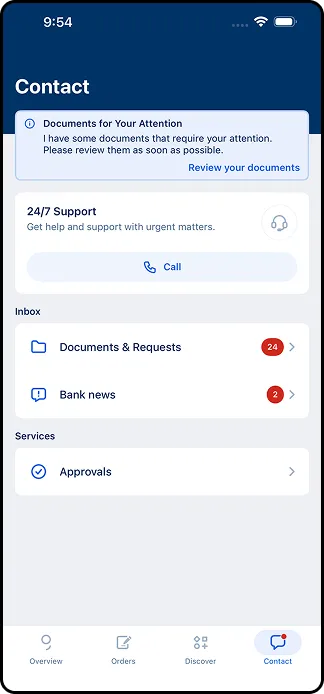
Another section accessible from the bottom bar is Contact. This section simplifies communication with the bank and includes an inbox with documents and services:
- Call – connects you to the Helpdesk
- Documents & Requests – documents for signing or viewing
- Bank news – important messages from the bank, including history and attachments
- Approvals – administrators can find requests such as adding a new user or changing permission settings
Profile
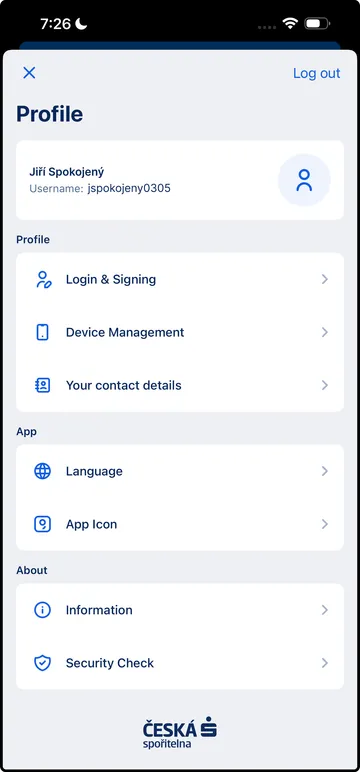
Your personal settings are available in the Profile section. At the top, you will find your username, which together with your security phone number forms your Česká spořiteln Banking IDentity.
The Profile section is divided into several parts:
Profile
Login & Signing – change your PIN or switch between two modes:
- authorization-only mode – the application serves only for login or authorization; accounts and balances are not visible
- George Business mobile banking – full access to accounts and banking features
You can also enable Face ID here for faster login and authorization
Device Management – view information about your current device and other devices where the application is activated; you can also add a new device
Your contact details – update your personal contact details (address, email, phone) or business contact details used for communication with the bank
App
- Language – switch the application language
- App Icon – choose a different icon color
About
- Information – useful information and links such as support contacts, terms and conditions, and privacy policy
- Security Check – verify that you have the latest application version installed
Summary
The George Business mobile application is designed to give you quick access to your company's finances. You can easily check balances, create or authorize payments, update contact details, or manage your devices. Thanks to its clear layout and intuitive navigation, you can handle most tasks within seconds.