For administrator

Last Article Update 15.12.2025

As the workspace administrator, you are responsible for the following functions:

  • Set user transactions limits
  • Manage permissions for authorised users
  • Manage product-specific permissions
  • Add or remove users from the workspace

To manage permissions, limits and users, go to you Profile in the blue bar at the top right. Then select "Permissions" under "Company Settings" section. 
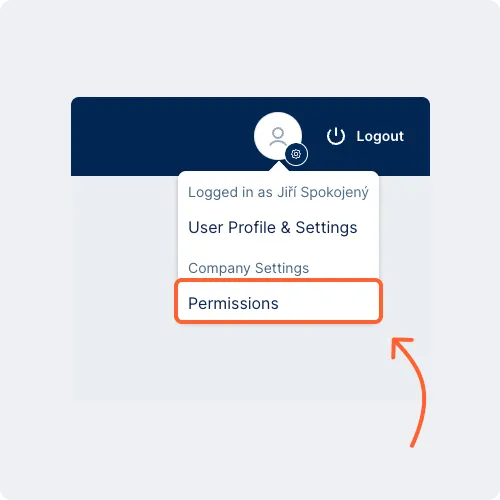
Permissions entry point Permissions entry point

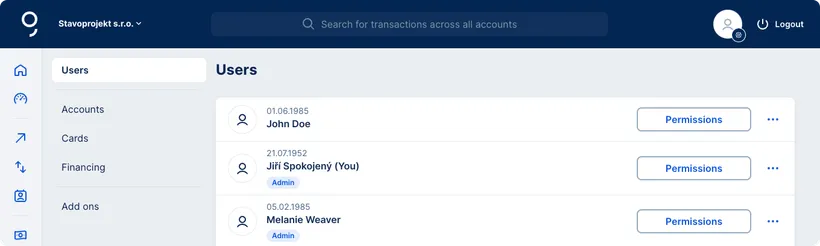
When you select "Permissions", you'll see a list of all users with access to the workspace.

Section for administrators Section for administrators

Managing Users

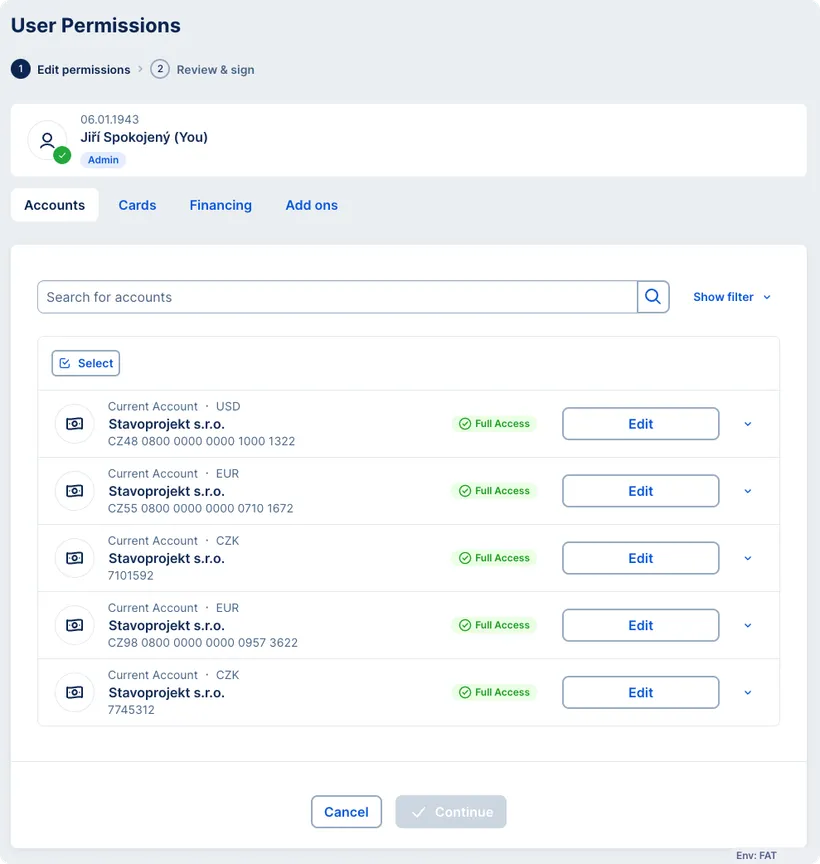
To check or adjust a user's permissions, select the user from the list and click the "Permissions" button in their row. This will open a page with all  user's permissions, categorized by product type (Accounts, Cards, Financing tabs) or workspace-related tasks (Add ons tab). Access levels are shown using labels: full, partial, or no access.

Detail of permission Detail of permission

You can view detailed information about the user's permissions for a specific product by clicking the arrow icon  at the end of the respective row.

To change permissions, click "Edit". This opens a screen where you can set individual permissions.

Removing users

To remove a user, go to the "Users" section via the left-hand menu. Select the user and click the three-dot icon in the their row. Then click the remove the user button.

Managing Products

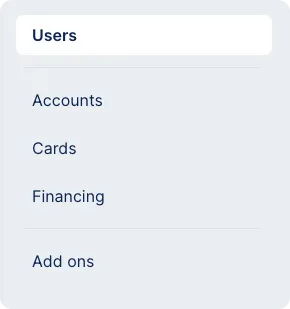
To manage product level permissions, go to the products sections (Accounts, Cards, Financing) via the left-menu.

Managing products menu Managing products menu

After that, select a product (e.g. a current account) and click the "Permissions" button in its row. You can then check and adjust individual user access settings for that particular product by clicking the "Edit" buttons.

Managing Workspace

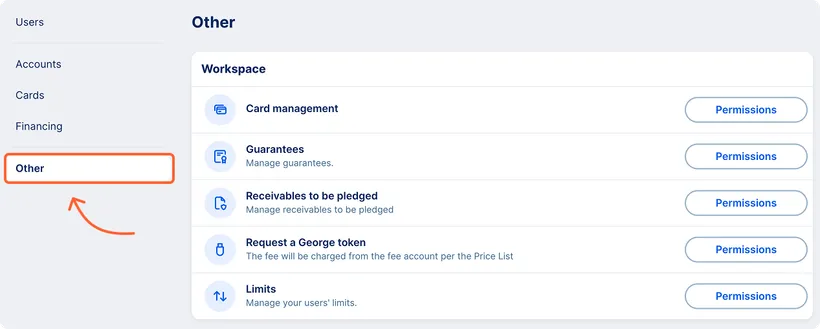
At the workspace level, you can set permissions for payment cards and financial market products, and also users' daily transaction limits. To manage these settings, go to the "Add ons" section via the left-hand menu.

Add ons section in the left menu Add ons section in the left menu

Click the "Permissions" button in the row to view a list of users. You can then set each user's daily payment limits and configure or update their permissions: Manage card administration, View financial market products, Negotiate financial market products independently.