Create a new business contact

Last Article Update 17.12.2025

To make entering payment orders even easier, save the banking details of your business contacts in the Contacts and Templates section. This ensures their information is always readily available when making payments.

A business contact lets you save recipient details, such as account number and bank code (required for domestic payments). Optionally, you can add other details such as recipient bank's country, BIC Code and primary address, which may be required for payments to some countries.

For each business contact, you can save multiple recipient accounts, e. g. accounts at different banks or in different currencies.

You can also attach payment templates to a contact for quick payment setup (see "Creating Templates" for details).
How to Add a New Business Contact

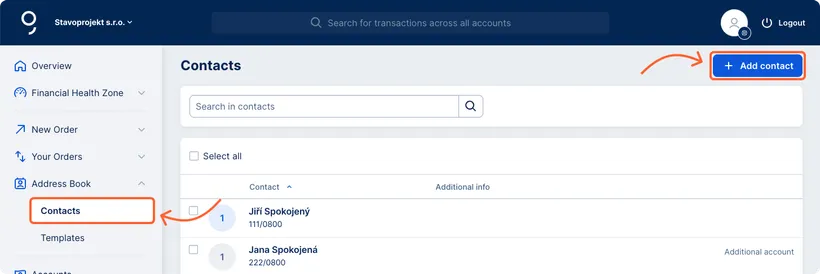
  1. In your dashboard, navigate to the left-hand menu.

  2. Click on "Address Book".

  3. In the dropdown menu, click "Contacts."

  4. Click "Add Contact" in the top-right corner.

  5. Enter the recipient’s name (choose a name you’ll easily recognize). Fill in the required fields, such as account details. You can also fill optional fields if needed.

  6. Click "Save" to add the new contact to George Business. 

  7. You can find and edit saved contacts anytime in the Contacts section.

    Creation of a new contact Creation of a new contact

Editing a saved contact from the payment form

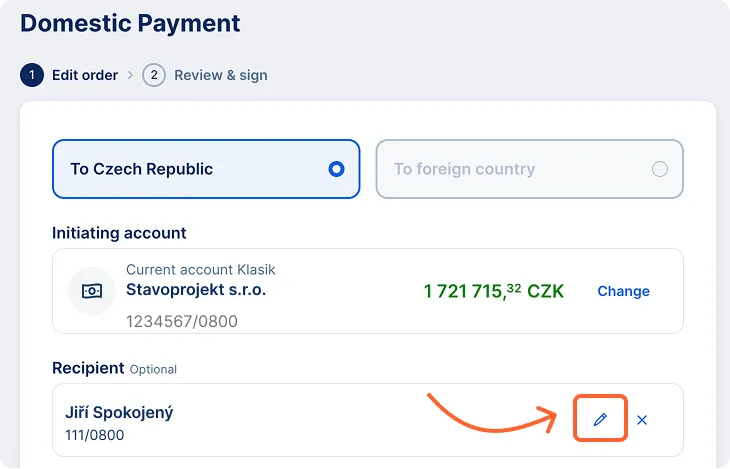
You can edit saved contacts or templates directly from the payment form when entering a payment or direct debit order.
Any changes made will be saved automatically, and the next time you use the contact or template, it will already reflect the updated information.

How to proceed:

  1. In the payment form, select the recipient from your saved contacts or templates.
  2. Click the edit (pencil) icon.
  3. In the window that opens, edit the necessary information – recipient name, account number, or recipient address.
  4. Changes will be saved when you sign or save the payment order.
Saved contact edit Saved contact edit