After logging in to George Business, you will be taken directly to the overview page from which you can manage your daily financial activities. Learn more about the different areas of this page and how you can best find your way around.
Last Article Update 11.06.2026
After logging in to George Business, you will be taken directly to the overview page from which you can manage your daily financial activities. Learn more about the different areas of this page and how you can best find your way around.
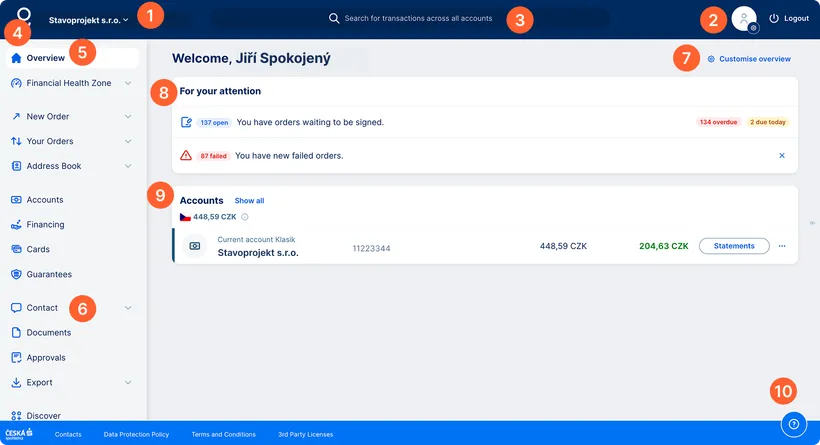
Workspace menu:
In the top bar on the left, you will find the name of your company. It indicates your current workspace. If you have access to several workspaces, you can switch between them right there.
Your profile:
Another feature in the top bar is the profile. By clicking on the profile icon, you open a menu. Via the items in the menu, you can view and adjust your contact details or access your user profile. There, you can select your preferred language or set a keyboard shortcut for the "Feature Assistant" service.
If you hold the administrator role, you will find here the Company Settings with the "Permissions" item, allowing you to manage user permissions and limits.
George Business search:
Looking for something? Use the search bar in the header to find items across all your accounts, cards, and loans, going back up to seven years. You can also access the “Feature Assistant” tool here to quickly locate functions or sections you need.
George logo:
No matter where you are in the application, a click on the George logo in the top bar will always take you back to the home page, i.e. the main overview.
Main menu:
The main menu on the left side of the screen contains everything you need: payment entry, data export, templates, accounts, cards, loans, and more. For example, to send a payment, click “New order”. This will open a submenu with specific payment options to choose from.
Contact:
In the section of the main menu called "Contact", you will see if you have new messages from the bank. Unread messages are indicated by a number in a red circle. A click on it will expand the menu displaying the following items:
- Bank news (one-way messages)
- Messages (two-way communication) – from here you can send inquiries to the customer service team.
This is also a place where you can find and reread messages that you received from the bank when you first logged in to the George Business.
The item "Help" contains a direct link to the George Business Help Center that will open for you in a new tab.
Customise overview:
Use the "Customise overview" button to rearrange sections, adjust their content, or create new sections. You can rearrange the sections by drag and drop as well.
"For your attention" section:
In this section, you can see if you have any orders awaiting your signature and how many there are. A click on the row with the blue "To Sign" label will take you directly to the folder where you can authorize the payments.
If payments have failed for any reason, they will also appear in this section in a separate row with a red "Failed" label. A click on the row with failed payments will take you to their overview where you can re-submit them.
You may also receive other notifications requiring your attention that will be displayed in this section.
Accounts section:
This section displays your accounts. You can choose to view all accounts or just those most relevant to you. You can arange the order of the accounts in a way that the ones you use most frequently appear first.
If you have cards or loans in the workspace, their respective sections will also be visible in the overview. The same adjustments are applicable to them.
Additionally, you can also create custom sections in which you can have a combination of various product types (e.g. specific accounts, cards and loans that relate to each other).
Support:
If you need any help, you can always click the question mark in the blue circle at the bottom-right corner of the screen. The menu that will open provides links to:
- Tutorial: a short tutorial that gives a quick introduction to George Business,
- Help: a direct link to the George Business Help Center with valuable information, instructions, and answers to common questions,
- Helpdesk: a phone number to call if you have questions regarding George Business,
- Feature Assistant: a tool for finding specific functions within George Business.