In George Business, you have full control over your cards. All card management tasks can be performed online.
Card management
Last Article Update 17.12.2025
Card Permissions
Cards issued to your company accounts are listed in the Card overview. You can manage your cards right there.
Depending on your assigned permissions, you will either see all cards issued within the workspace (if you are the card administrator) or only the ones issued directly to you (if you are the cardholder).
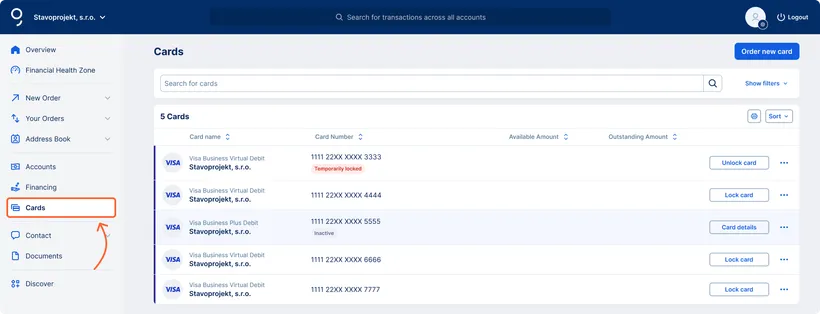
You can access the card overview from the main menu by clicking on the "Cards" option, or through the Cards section or the Navigator. More information about the card overview can be found here.
Card Activation
Only the cardholder can activate the card.
- A virtual card is active immediately after being issued.
- A physical card must be activated in the George Business web application.
- The card must be in the “Inactive” status in order to be activated.
-
In the card overview, find the card you want to activate.
-
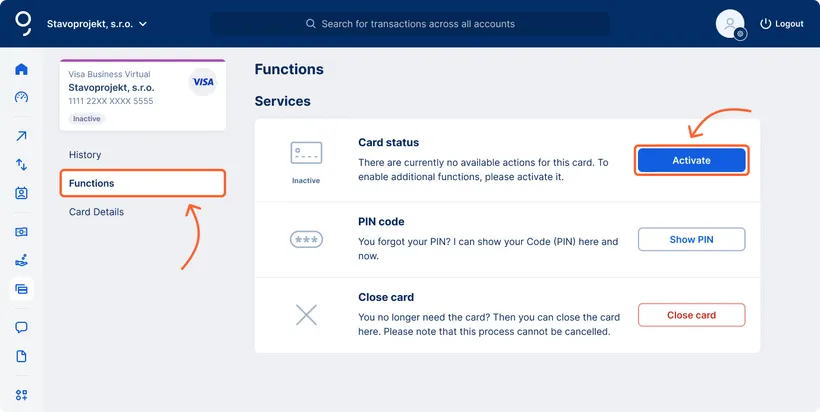
In the card details, go to “Functions.”
-
In the “Services” section under “Card Status,” click the “Activate” button.
-
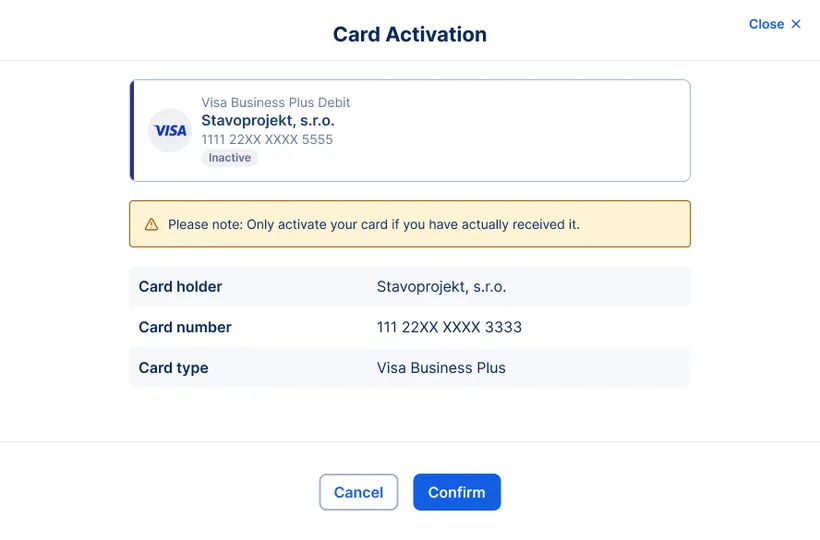
The “Card Activation” window will open. Review the information and confirm the activation.
-
Sign the activation request in the George Business mobile application. The card will then be active immediately.
View Card Details (Card Number, Expiry Date, CVV)
If you need to view the full card number (PAN), expiry date, or security code (CVV), you can do so directly in your online banking.
Card details available only to the cardholder
Viewing details (full number, expiry, CVV code) is available only to the holder of the given card, just like viewing the PIN. A card administrator can view this information only for their own cards, not for cards held by other users.
Closing a card
If you wish to cancel the card entirely, the card administrator can close the selected card as follows:
-
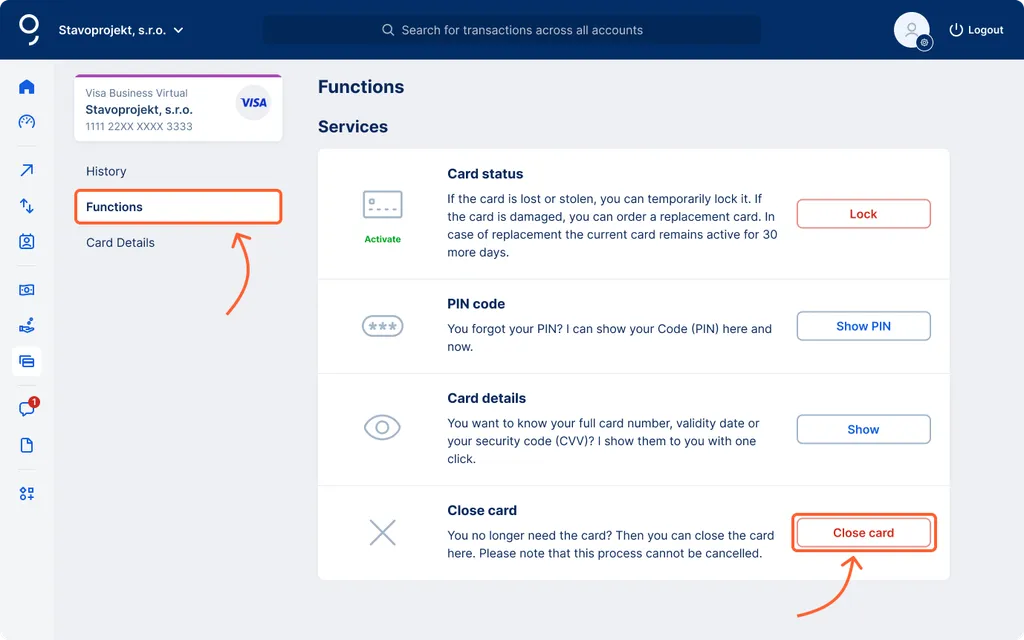
In the Cards section, select the specific card you want to close.
-
Click on Functions in the left part of the screen.
-
At the bottom of the screen, in the “Services” section, click the Close card button.
Transactions with Currency Conversion
A card manager can enable or disable transactions with dynamic currency conversion in the George Business web application.
In the card detail, go to “Functions” in the left menu.
In the section “Dynamic Currency Conversion (DCC),” click the “Activate” (or “Diactivate”) button to change the setting.