In November, George Business introduces these new features to streamline your financial operations – access card accounts directly in your account overview, create SEPA payment orders using QR codes in the mobile app, and set up customised balance notifications for better cash flow control.
November Updates: Card Accounts, SEPA Payments via QR Codes and Balance Notifications
Last Article Update 30.01.2026
Card accounts
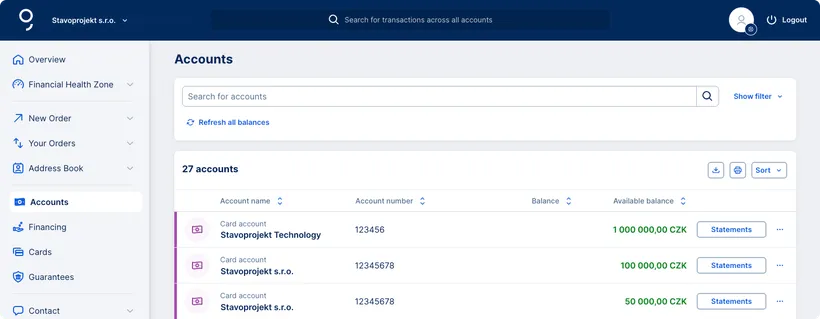
In the "Accounts" overview, you will now find also card accounts. They are labelled as “Card account” , so you can easily filter them out. These accounts are linked to the following types of cards:
- Business prepaid card
- VISA Business Charge
- Business credit card
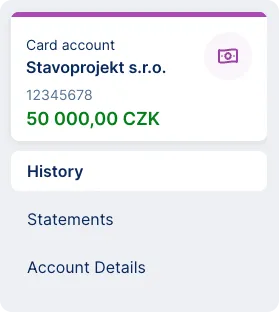
In the card account detail, you will find the standard menu:
- History – filtering and export options
- Statements – view and download statements
- Account Details – limits, interest rates, repayments
Card account statements
You can set up a new statement rule for card accounts via the left menu: Export → Statement Settings. Available formats include ABO (internal), ABO (standard), CSV (comma), CSV (semicolon), and PDF.
All statements are then accessible via Export → Current Statements, where you can filter them out by account number, frequency, format, and period.
Cards linked to card accounts
In the Cards section, you will now see individual cards linked to card accounts. Cards can be viewed by their holder or by a user with the “card administrator” permission.
In the card detail, you have access to:
- History – easily search all transactions using filters. Transaction history can be exported or printed in PDF.
- Functions – manage permanent and temporary limits, activate or lock the card, request a replacement, or close it. You can view the PIN, set delivery options for the card and PIN, and activate or deactivate the Dynamic currency conversion (DCC).
- Card Details – detailed information about the card.
SEPA payments via QR codes
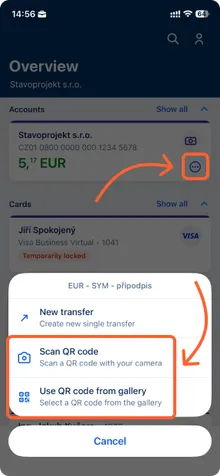
In the George Business mobile app, you can now enter SEPA payments using QR codes. You can either scan a QR code or select one from those saved in the gallery of your phone.
Directly in the Overview, tap the three dots next to the specific account and select “Scan QR code” or “Use QR code from gallery”.
Balance notifications
In the George Business web app, you can now set up custom notifications to regularly inform you about the available balance on selected accounts.
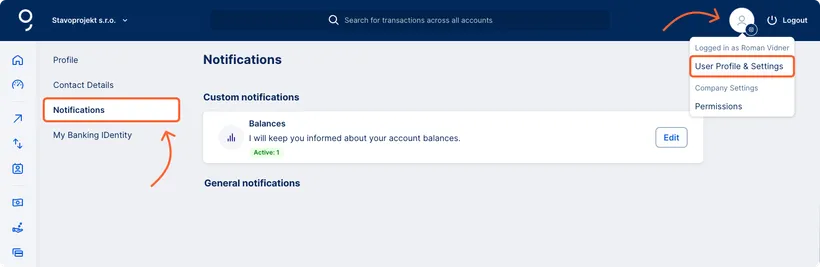
The feature is accessible via User Profile & Settings → Notifications.
For notifications, you can set the following criteria:
- Account – for which you want the notifications
- Frequency – daily, weekly, or monthly
- Delivery method – either to your work email or to the George Business mobile app (if active)
Notifications will always include the balance valid for the given day and time. For example, with daily frequency, George Business will send a notification every business day between 6:30 and 8:00 am. The displayed balance reflects the account status as of 4:00 am.
How to set notifications:
1. Click User Profile & Settings in the top right corner.
2. In the left menu, select Notifications. You’ll see an overview of two types of notifications:
Custom notifications – set by you
General notifications – automatic, bank-set
3. Click Edit next to notifications named Balances. This will take you to the notifications detail.
4. Click + Add new.
5. Set the required parameters (accounts, frequency, delivery method) and confirm.
You can set as many notifications as you need with various parameters. You can edit, delete, or simply enable/disable them using the toggle.
Balance notifications give you a clear view of transactions and spending without opening the app.