Set up standing orders to make regular payments of the same amount more convenient.
Standing order
Last Article Update 15.12.2025
How to Create a Standing Order
There are two ways of creating a standing order in the web application:
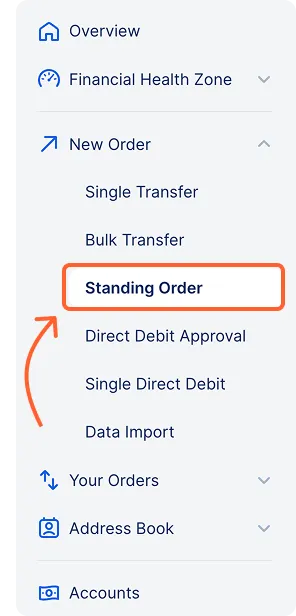
Access via main menu
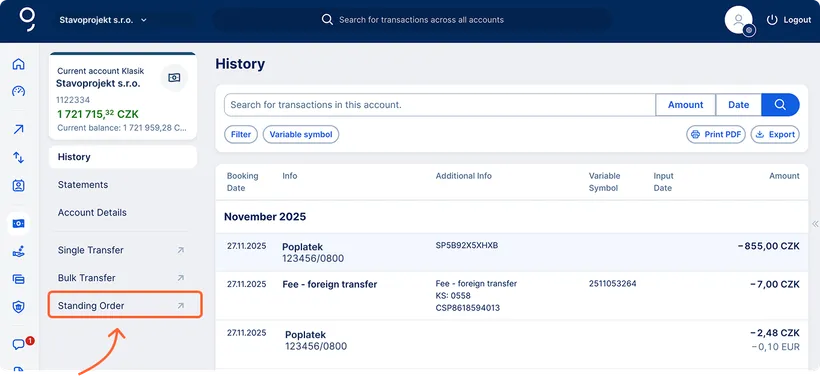
Access via specific sccount
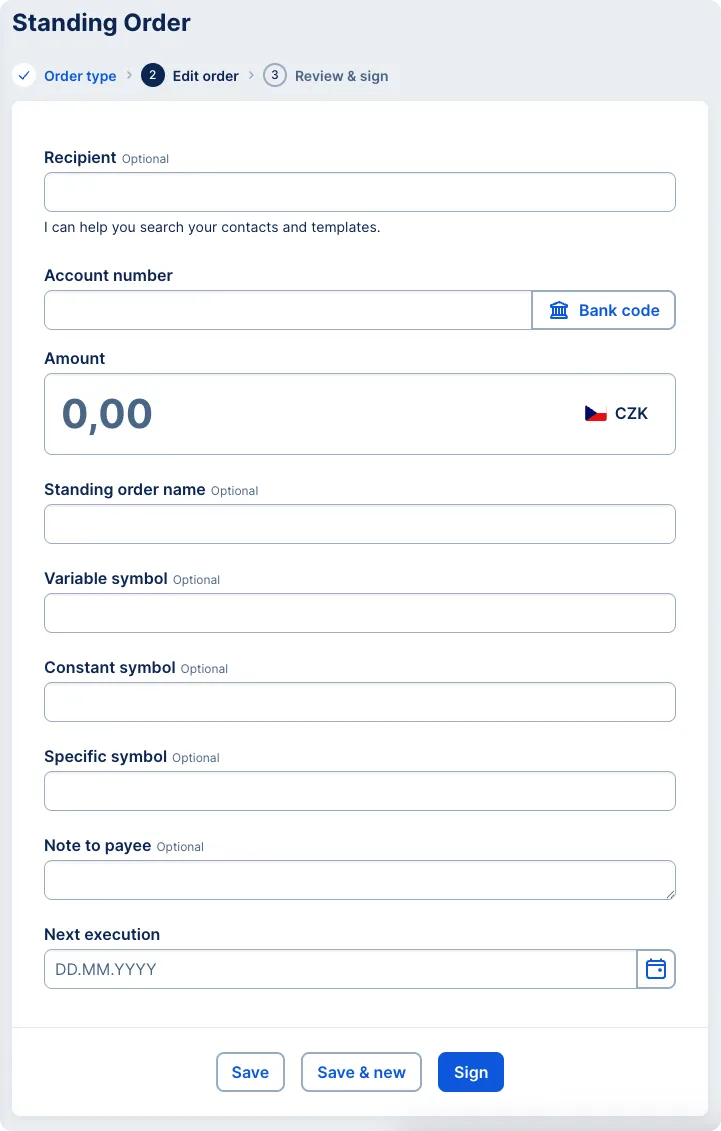
Further, fill in other required payment details:
- Initiating account – if already prefilled, you can change it if necessary.
- Recipient – you can look it up in your contacts or templates.
- Account number and Bank code – enter manually if you have not used any of your saved contacts.
- Amount – enter the amount in Czech crowns. Other currencies are currently unavailable.
- Optional fields include standing order name, variable symbol, constant symbol, specific symbol and note to payee.
- Next execution – select the date when the order should come into effect.
- Interval (the frequency) and Execute until (the end of validity) – select appropriate values from the drop-down menus.
- Break from / Break to – are optional fields. Fill them out if you want to set a period of time when the payments should not be executed.
- After you have filled the necessary details, you can sign the order, or save it and sign it later.
How to edit standing order
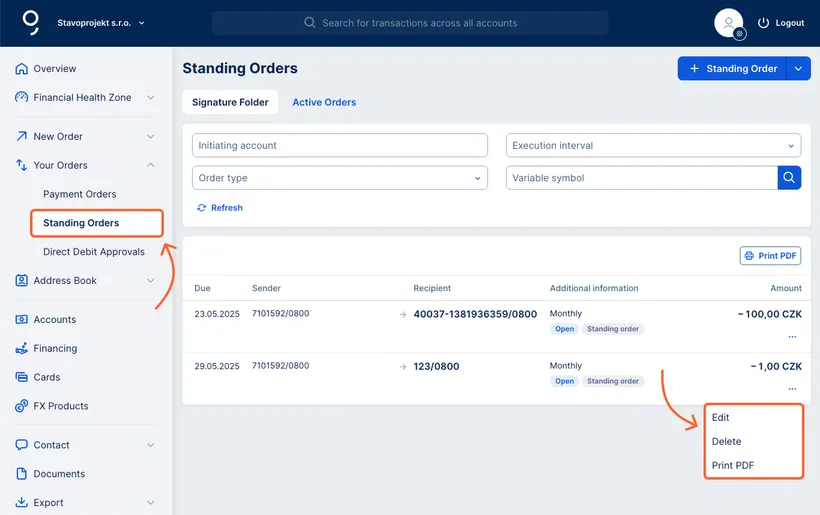
How to delete standing order
The procedure of deleting a pending order and cancelling an active order is almost the same.
Filtering Standing Orders
You can filter all standing orders by the following criteria:
- Initiating account
- Execution interval (daily, weekly, monthly, quarterly, semi-annually, annually)
- Order type (standing order, sweep order)
- Variable symbol

Printing Standing Orders
You can print all standing orders in PDF format using the "Print PDF" button that is available on the overview of standing orders as well as on the order's detail screen.