With George Business, you can make payments using predefined templates to avoid errors and save time. This way, you won’t have to fill in payment details every time you make a transfer.
Payments with templates
Last Article Update 17.12.2025
How to Use a Template via the Payment Form
-
Create a new payment order.
-
Start typing the recipient’s name in the recipient field. In the dropdown menu below, you'll see templates linked to this recipient and their account number(s). Select the entry marked as "Template" for the recipient, and the payment form will be filled in automatically.
-
Review the payment details and adjust them if necessary.
-
Confirm the payment.

How to Use a Template via Address Book
-
In your overview, go to the main navigation panel on the left.
-
Click "Address Book" to open the dropdown menu.
-
Go to "Templates" to view all your saved payment templates. Click the template you want to use.
-
In the template details, click the "Single transfer" button.
-
Review the payment details and modify them if necessary.
-
Confirm the payment.
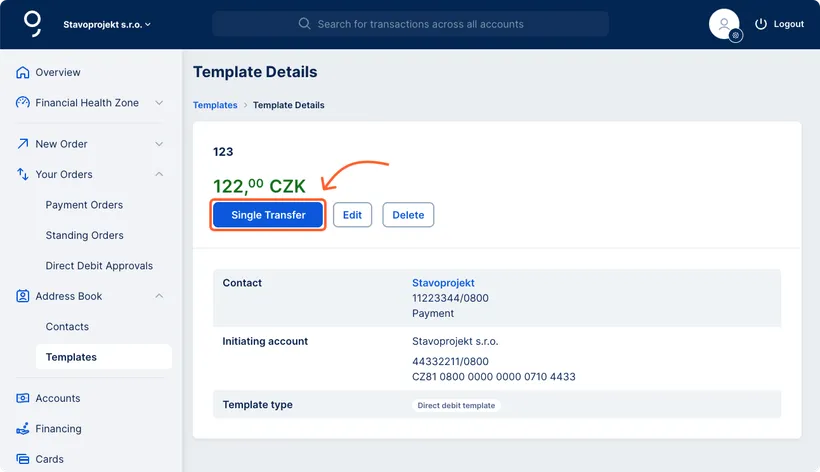
This shows the difference between a contact and a template. A contact includes only the account number, while a template includes both contact and payment details.