In the George Business web application, you can manually enter a bulk domestic payment. This step-by-step guide will walk you through the entire process – from selecting the account to saving the payment as a template.
How to manually create a bulk domestic payment
Last Article Update 16.12.2025
1. Enter Bulk Transfer Details
1. In the left-hand menu, click “New Order” and then “Bulk Payment”.
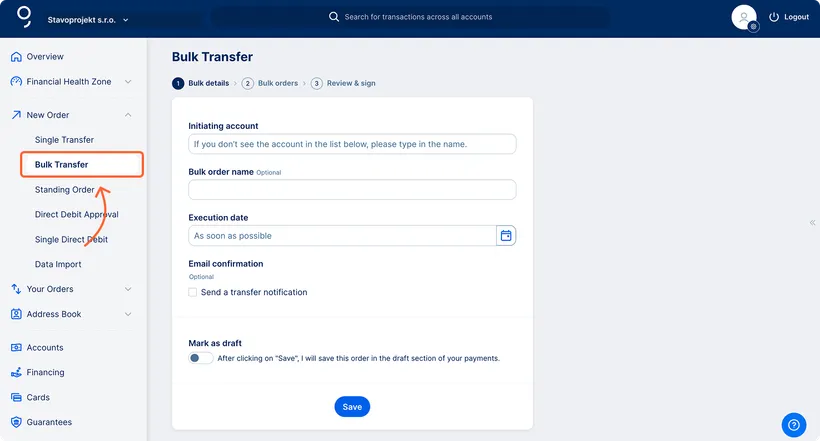
2. Select the payer account from the list. You can name the bulk payment to make it easier to find later using the “Bulk payment name” field.
3. You can leave the due date set to “As soon as possible” or select a specific date.
4. Click “Save”. The order will be saved under “For signing”, and you will be taken to the second step – adding individual payments to the batch.
2. Add individual payments
You can add up to 50 individual payments to a bulk payment.
1. Click “+ Add new payment” and fill in the form.
Click the “Recipient” field and select from the list if you want to use saved contacts or single payment templates. The recipient details will be filled in automatically. Otherwise, enter the account number and bank code manually.
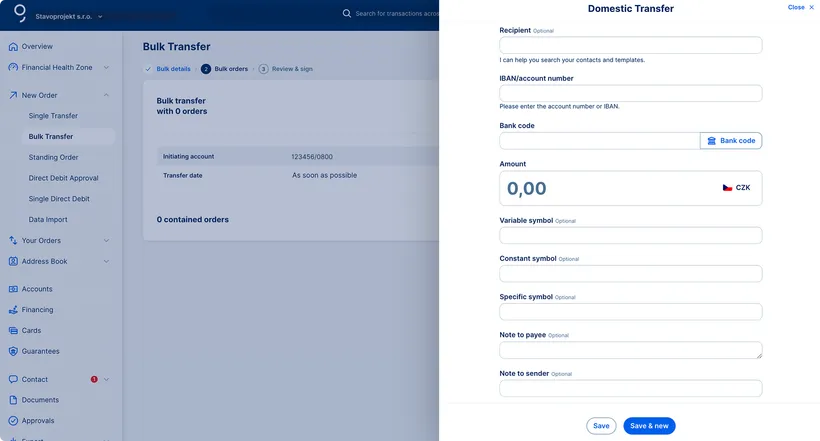
2. After entering all details, click “Save” or “Save and add another” if you want to add more payments.
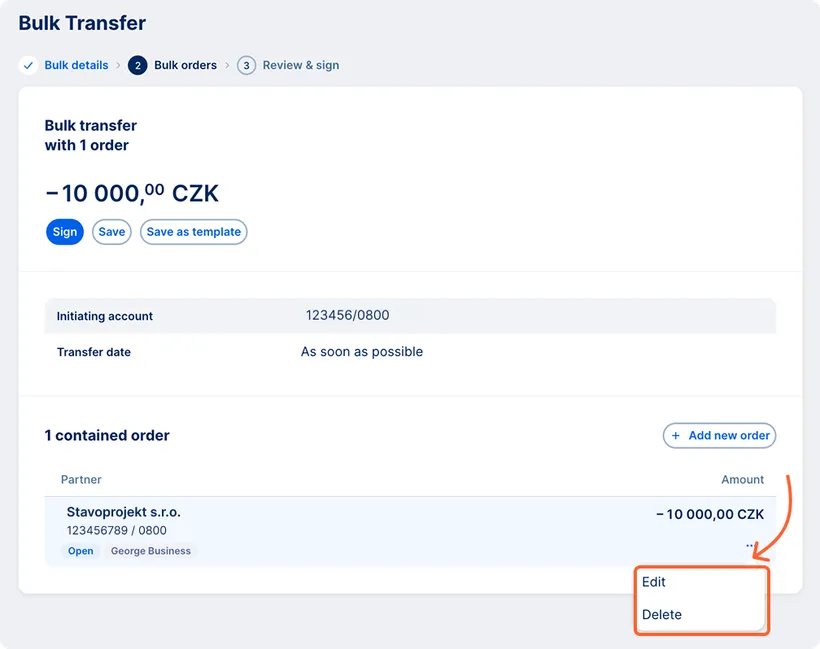
In the bulk payment detail, you can edit or delete individual payments at any time using the three-dot menu.
3. Save or confirm the bulk payment
Once the bulk payment is ready and all individual payments have been added, you can either save it or confirm it.
Creating a bulk payment using a template
If you have saved bulk payment templates, you can easily use them to create a new bulk payment. Proceed as follows:
1. In the left-hand menu, go to “Contacts and templates” and then “Templates”.
2. Find the template you need. You can search by the template name or use the filter at the top of the list. Under template type, select “Bulk payment”.
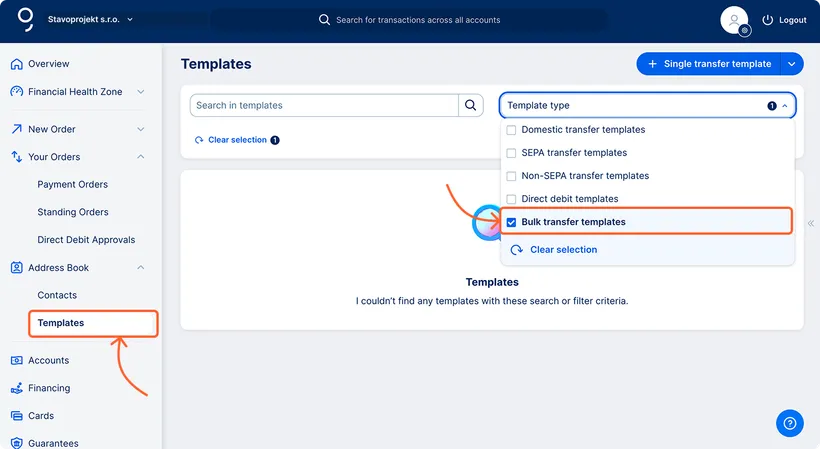
3. Click the row with the template you want to use.
4. In the template detail, click “New bulk payment”. This will take you to the manual bulk payment entry process.
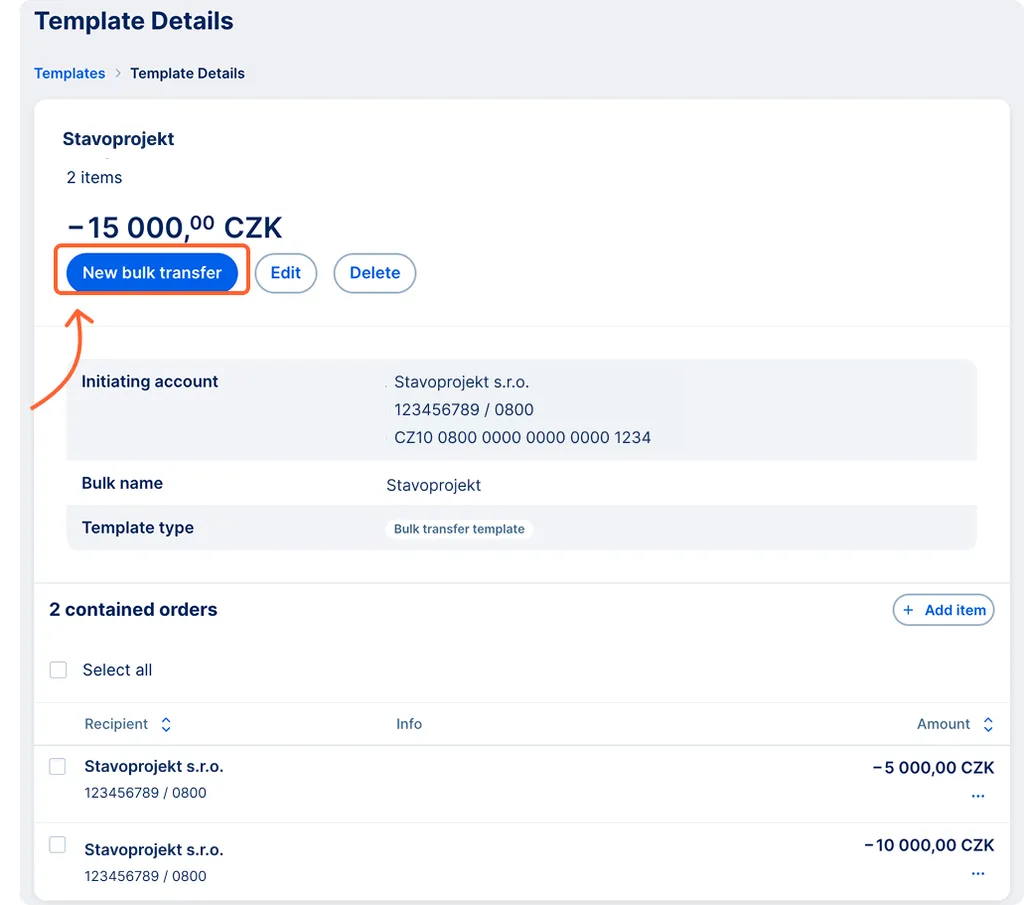
5. All details from the template will be pre-filled in the payment form. You can adjust them as needed and confirm the payment.
The more templates you save, the more time you’ll save next time. You can also edit them at any time to reflect your current needs.