Entering payment orders via George Business is straightforward, even for multiple orders at once.
Import of payment orders
Last Article Update 23.01.2026
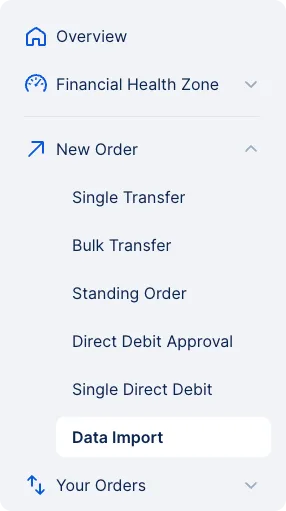
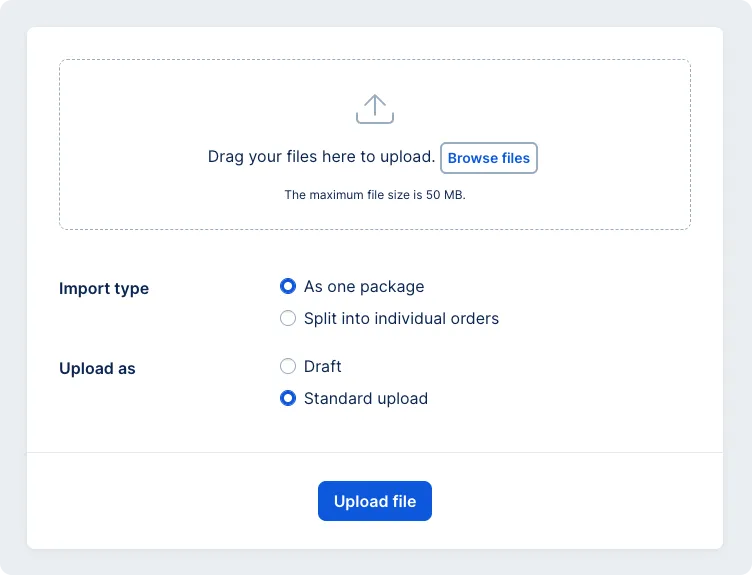
In the "New Order" menu, simply click on "Data Import." This opens the Import Orders screen. Drag and drop a file containing payment orders at the top of the screen, or click to browse your computer and upload it.
The maximum size for an uploaded file of payment orders is 50 MB. You can upload up to 10 files at a time. Each file can contain up to 1 000 orders.
You can import:
- Domestic payments (single payments and direct debits) in ABO format (.kpc)
- SEPA payments in pain.001 format (.xml)
- SWIFT payments in .csv format
- Domestic single payments in CFD format (.cfd)
If an ABO file includes payments from multiple accounts, the it will be split into separate batches based on each account.
You can upload a batches either in standard upload (available for signing immediately), or in "Draft" mode (saved for later and visible only to the user who performed the import).
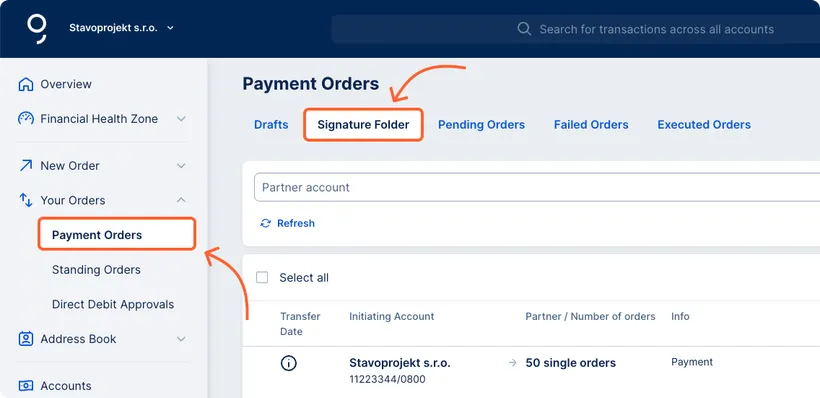
You can find saved payment batches in the main left-hand menu under "Your Orders" – "Payments Orders." Batches imported in standard mode will appear in the "Signature folder" tab, where you can sign and sent them. Draft batches are saved under the "Drafts" tab.
Editing the import
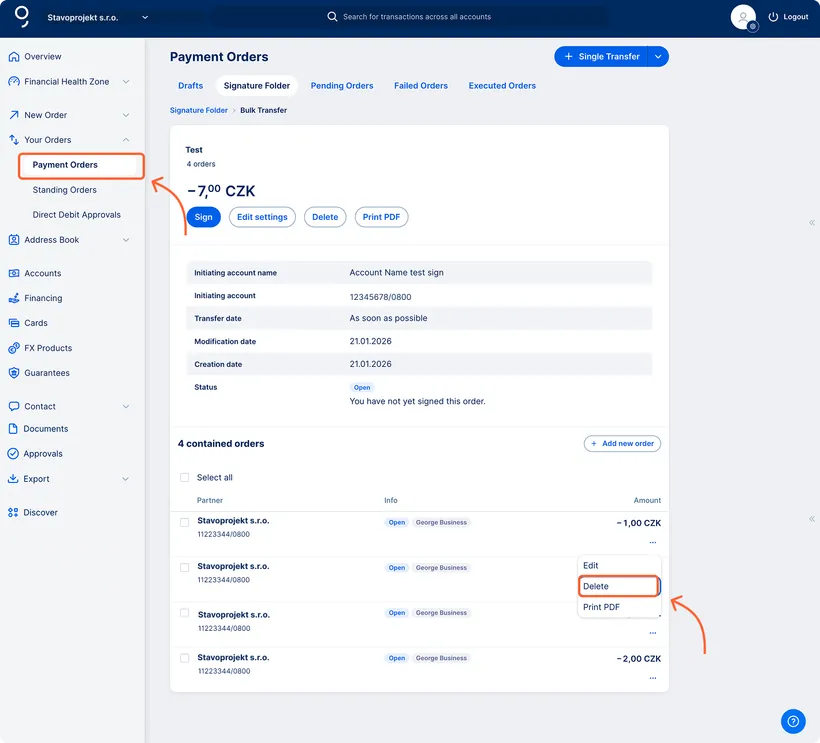
If you need to delete certain items from the uploaded import, you can do so directly in George Business. This applies regardless of whether you uploaded the import as one package or as individual orders.
- Deleting individual orders and bundles
In the detail of your import, click through to the specific order and use the three‑dot menu to access the available functions. Click the “Delete” button.
In the same way, you can delete entire bundles or individual orders contained within those bundles.
- Bulk deletion of orders
If you need to delete multiple items, select the relevant orders or bundles (you can also use the Select all option), and click “Delete” at the bottom of the screen.
Deleting all items within a bundle will delete the entire bundle. Deleting all items from the uploaded import will delete the entire import.