You can set up a direct debit order easily, just like making a single payment order.
Direct Debit Order
Last Article Update 05.01.2026
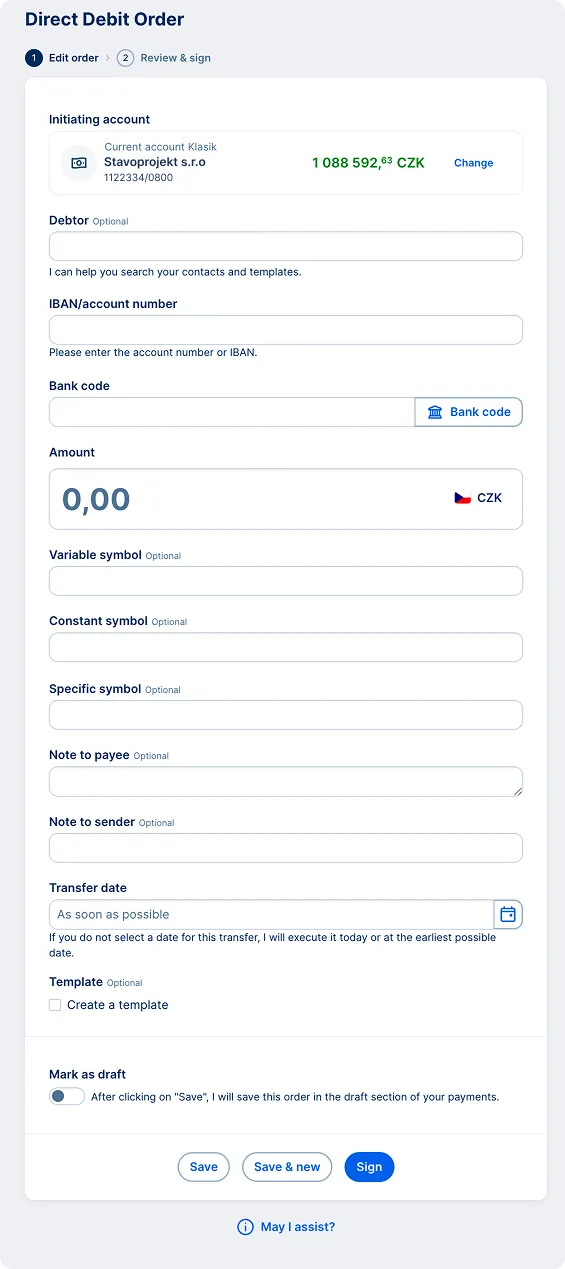
Creating a Direct Debit Order in CZK
-
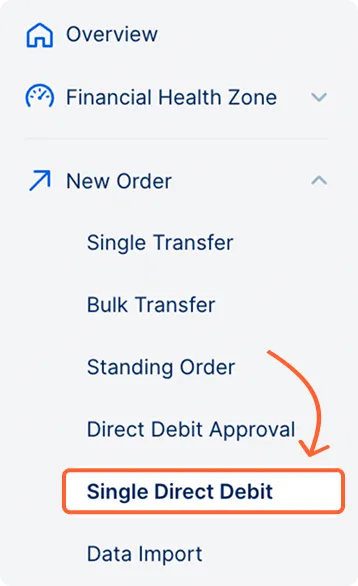
Select "New Order":
From the dropdown menu, choose "Single Direct Debit" to open the direct debit order form.
-
Select the Initiating Account:
Your default primary account is selected automatically. To use another account from your workspace, click "Change" and select from the list. -
Debtor’s Name (Optional):
For domestic direct debit orders, entering the debtor’s name (ii.e., the person from whom you will receive the money via direct debit) is optional. Clicking the "Debtor" field, you can open your contact directory and select a saved business contact to auto-fill the recipient's account number.
Using a Predefined Template:
If you have a pre-existing direct debit template, you can use it to fill in the form faster. -
Entering Account Details:
If you don't use a saved contact, manually enter the debtor's account number and select the bank code from the list. -
Specify the Amount:
Enter the amount in CZK. -
Optional Fields:
You can also add the following details:- Variable Symbol
- Constant Symbol
- Note to payee
- Note to sender
-
Set the Transfer Date:
Click the "Transfer Date" field to open a calendar and select the payment date. If you don't select a date, the order will be scheduled for to the earliest possible date available. -
Save Only:
If you don't want to send the order yet, just save it. It will appear under "Payment Orders" > "Signature Folder". -
Mark as Draft:
Use the toggle to save the order as a draft. The "Sign" button will be hidden, and the order will be saved under "Payment Orders" > "Drafts." -
Confirm the Order:
Click "Sign" to finalize the setup.
Authorization and Signing:
After confirmation, you'll see a summary of all details entered details. Review them carefully and sign the direct debit order using the George Business mobile app.