Find out where to locate treasury trade confirmations in the George Business web application, how to sign them, and which confirmations require your signature.
Treasury Trade Confirmations
Last Article Update 17.12.2025
How to View Confirmations
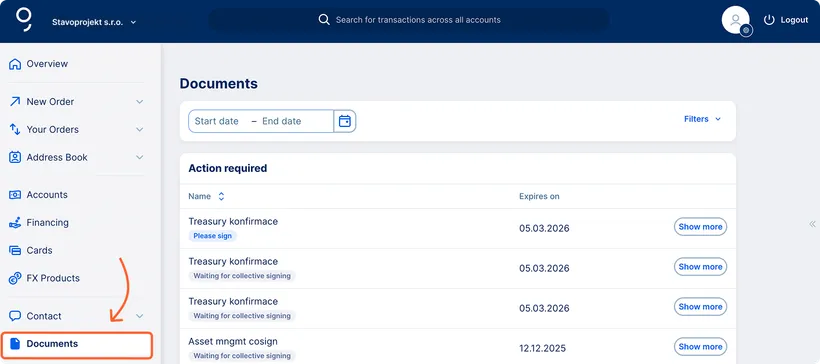
After signing in, open the Documents tab from the left-hand menu, where you’ll see all your Treasury documentation. You can filter the list by selecting the appropriate category. Documents that you need to read appear in the Your Documents section. Documents that are awaiting your signature are displayed at the top of the screen under To Be Processed.
Notifications about documents awaiting your action also appear on the Home page in the For your attention. When you click the line stating “You have documents that require your attention”, George automatically redirects you to them.
For trades that do not require a signature, the document is automatically saved under Archived documents & Requests section.
Signing and Signing Permissions
For FX spot and Money Market deposit transactions, the confirmation is for viewing only and does not require a signature. All other types of transactions must be signed.
The signature can be completed either by:
- a single authorized user, or
- multiple users with the rights “Confirm confirmations of Financial Market Products individually” or “Confirm confirmations of Financial Market Products jointly with another User,”
- or a combination of one individual and one joint signatory.
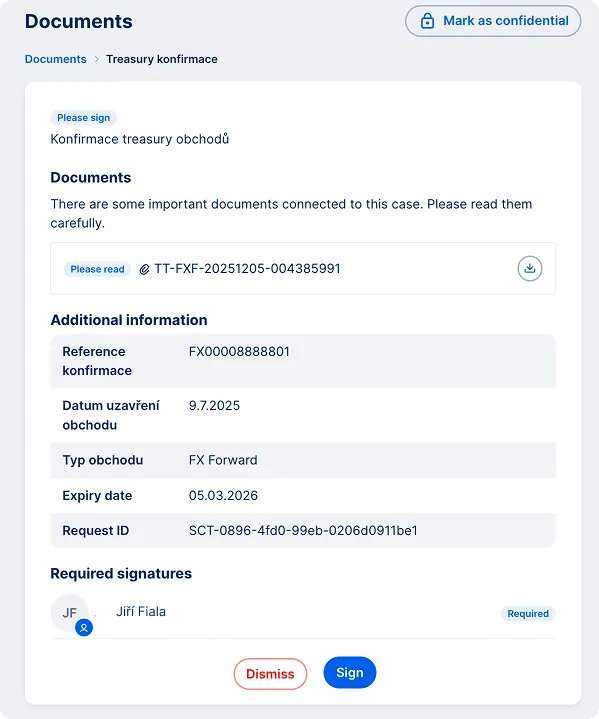
In the Documents overview, click “Show more” next to the relevant confirmation. Then click the link to the attached file to read its contents. Only after reviewing the document will the “Sign” button become available.
Confirm the signature using the George Business mobile app. Once signed, the confirmation moves to Archived documents & Requests section.
Document Status
- Please sign – the document is awaiting your signature.
- Waiting for collective signing – visible to users authorized for joint signing after one of them has signed; others still see it as To Be Signed.
- Please read – the document is for informational purposes only and does not require a signature.
Cancelling an Operation
You can cancel a transaction by rejecting it and providing a reason. If the parameters shown in the confirmation are incorrect or inconsistent, you may reject the signature. A reason for rejection must always be entered. No signature is required when rejecting a document.