FX Spot Transactions

Last Article Update 17.12.2025

An FX spot transaction is a type of foreign exchange trade that involves exchanging two different currencies at a customized exchange rate. This rate is based on the current market rate. Settlement of the transaction takes place on the date selected when placing the trade – either on the same day or one to two business days after the trade is executed.

FX products overview FX products overview

Availability of FX Transactions

You can execute FX trades on business days, Monday to Friday, from 8:00 a.m. to 5:30 p.m. FX transactions are not available on weekends or public holidays.

Authorization for FX Transactions

FX trading is available only to clients who have signed a Master Agreement on Financial Market Trading (Rámcová smlouva o obchodování na finančních trzích) or a Master Framework Agreement on Financial Market Trading (Rámcová dohoda o obchodování na finančních trzích).

After that, the company administrator must assign the appropriate permissions to individual users (disponents).

  • To access the Foreign Exchange Transactions overview, a user must have the right to View financial market products.
  • To conclude new FX trades, a user must have the right to Trade financial market products. Trades can only be executed from accounts where the user has the right to Enter payment orders.

To set permissions for FX transactions, go to Company Settings by clicking your profile icon in the top-right corner, then select the General and Financial Market Products permission categories. For more details, see the For Administrator section.
Creating a New FX Transaction

  1. New FX Transaction

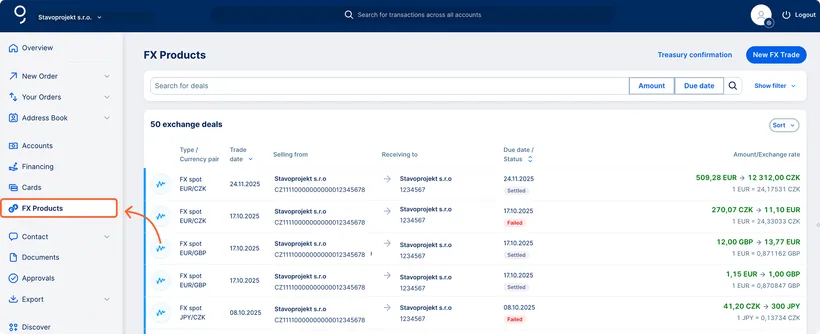
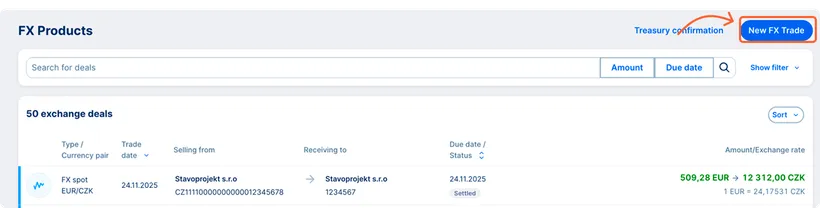
    In the side menu, select FX Products. You will see an overview of your previously completed transactions. Click “New FX Trade” in the top-right corner.

    New FX trade New FX trade
  2. Selecting Accounts

    Enter the source account from which the FX trade will be executed. Click in the field to view the list of available accounts and make your selection. Then choose the target account. If you need to change an account, simply click the field again to remove the current one and select another.

    The trade can be executed only between the client’s own accounts within a single workspace. Both accounts must be held with Česká spořitelna; trades between accounts at other banks are not supported.

  3. Trade Amount

    Enter the transaction amount. The maximum amount you can trade is EUR 1 million or the equivalent in another currency.

    Depending on the selected currency, you can specify either the amount you want to pay or the amount you want to receive. Below the amount, the updated balance of the selected account will be displayed.

  4. Due Date

    Choose the due date of the transaction. You can select the trade date or one of the following one or two business days.

  5. Email Confirmation

    If you would like to receive a confirmation of your trade, enter your email address.

  6. Exchange Rate

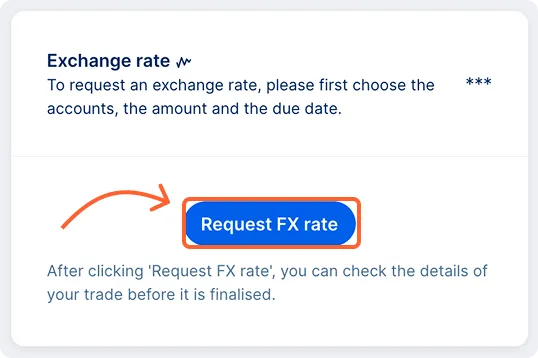
    After completing the trade parameters, move to the right-hand side of the screen and click “Request FX rate”. You will receive a quote for the selected transaction with an exchange rate valid for 10 seconds (or 30 seconds if transaction authorization is enabled).

    If you have authorization for all payments turned on, you will be prompted to confirm the trade via your mobile device before it is executed.

    Exchange rate request Exchange rate request
  7. Trade Confirmation

    If you agree with the offered rate, click “Confirm”. The transaction will then be executed. If you have the authorize all payments function enabled, the trade must also be confirmed in the George Business mobile app.

Downloading FX Trade Confirmation

For each completed transaction, you can download a trade confirmation in PDF format.

  • In the FX Transactions overview, select the specific transaction and click “Deal Confirmation”.
  • The confirmation can be downloaded in Czech or English, depending on your current language settings in George Business.
  • If you provided an email address during the trade, you will also receive the confirmation by email.

Overview of FX Transactions

You can access all your FX transactions through the FX Products section in the main menu.

  • The overview shows all completed trades, including trade date, currencies, accounts, and transaction amounts in both currencies.
  • Clicking on a specific row opens the deal detail, where you can also see the settlement date if it differs from the trade date.
  • You can filter transactions by account or currency or use the search bar to find a specific trade. Individual transactions can also be sorted by various criteria.