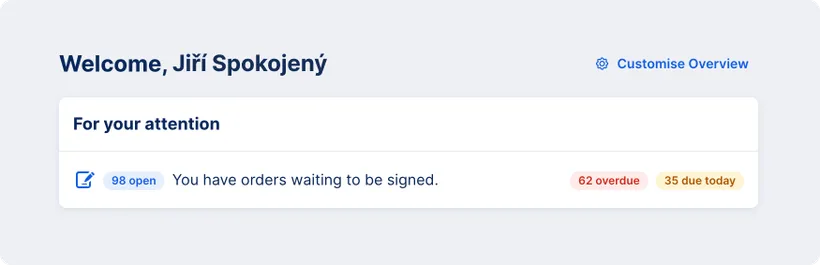
George Business shows a clear overview of payment orders awaiting for your signature.
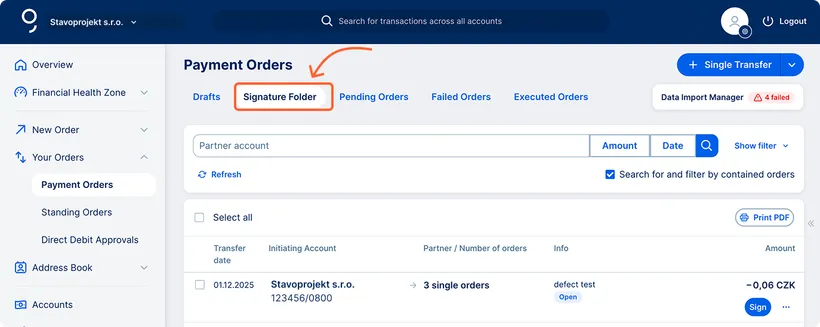
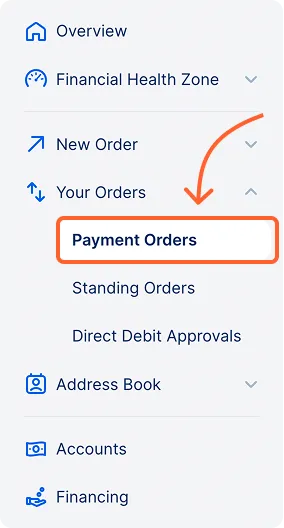
You'll find them in the drop-down menu under Your Orders –> Payment Orders within the Signature Folder tab.
Last Article Update 17.12.2025
George Business shows a clear overview of payment orders awaiting for your signature.
You'll find them in the drop-down menu under Your Orders –> Payment Orders within the Signature Folder tab.
Click an order to view its details, including transaction information.
To sign an order, click the blue Sign button – either in the order details or directly in the list.
You can delete a payment order either from the order details or via the three-dot menu on the right side of the order in the Signature Folder.
You can include both single and bulk orders in a bulk action, except imported bulk orders.
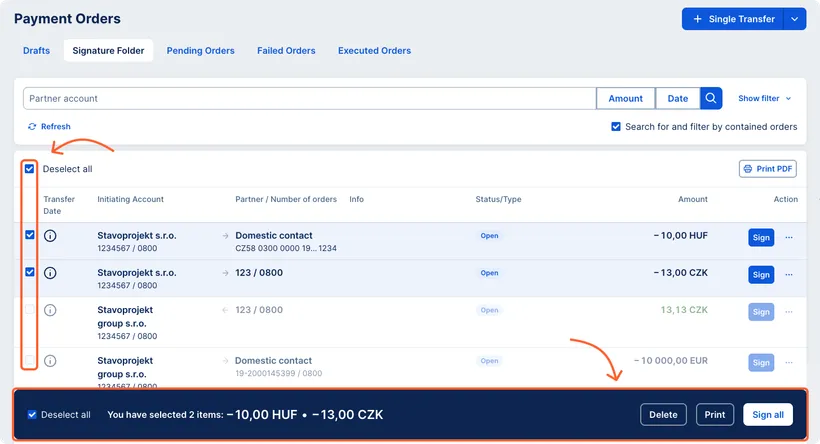
Select orders on the left side, then choose an action from the blue bar bellow:
You can select different types of orders, provided they all share the same “Ordering Account.” After selecting the first order, George Business will limit your selection to orders from the same account.
A bulk order can only be selected and included in a bulk action if it contains at least one order in the batch.
A bulk order containing no payments cannot be signed – not even individually.