You can access the overview of all accounts in several ways.
Last Article Update 17.12.2025
You can access the overview of all accounts in several ways.
Using Feature Assistant
By clicking into the search field in the George Business header, you can launch the Feature Assistant, which allows you to quickly find what you need — including the accounts overview.
In the accounts overview, you’ll find all the accounts you have set up, whether they are current, savings, loan accounts, etc. To make navigation easier, you can sort them as needed.
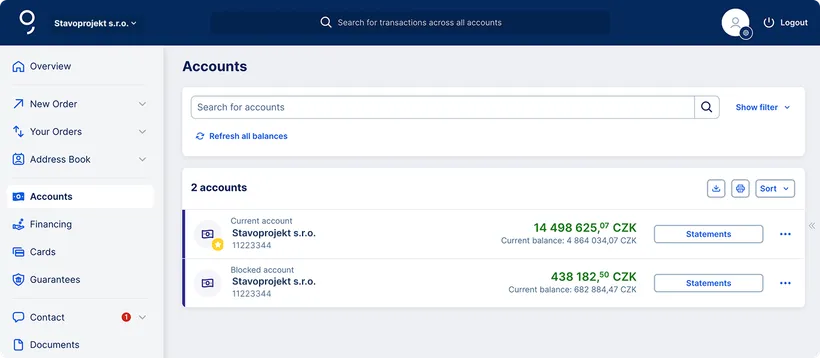
If you are a large company with many accounts, you can use the search and filtering options located above the account list. By clicking the “Show filter” button in the top right corner, you can display the settings for parameters that allow you to search and filter accounts. For searching, even just part of the account number or name is enough. George will immediately start searching and display the matching accounts.

By clicking the “Statements” button next to each account, you will go directly to the statements screen for that account, where you’ll find the current list. Here you can download the statements — either individually or in bulk — and then print them.

In the accounts overview, you also have access to additional features related to your accounts. You can display their menu by clicking the three-dot icon at the end of each account row. For example, you can initiate a new payment, view account details, assign a new label, mark the account as a favorite, and more.
By clicking on a specific row in the account list, you will display the transaction history of the corresponding account and access the account detail menu.
You can download the account overview using the button with the download icon in the top right corner.
In the preview, you can then set the parameters you need – choose the delimiter and markers, select the fields you want to export (such as account number, account type, etc.), arrange the order of the fields (by dragging) – and download the file.